Type “gemini prompt generator” into Google and you’re not looking for another article listing prompt examples — you want something that builds the prompt for you. This page does that: fill in the fields below, and a ready-to-paste prompt assembles itself on the right.
Build a Gemini Image Prompt
Fill in each field. The prompt below updates as you type.
Every field maps to one part of the six-part prompt formula covered in our full prompt-writing guide: subject, action, setting, style, camera, and a constraint to protect facial features if you’re uploading a reference photo. Fill in what you know, leave the rest on the defaults, and copy the result straight into Gemini.
You don’t need to fill in every field precisely — even rough phrases (“rooftop at sunset” rather than a fully composed sentence) work, since the generator assembles them into a complete instruction.
Field guide
Subject — be as specific as you can: age range, build, hair, clothing color and fabric. “A woman in a mustard yellow saree” renders more consistently than “a woman.”
Action/Pose — name an actual motion or pose (“mid-spin,” “leaning against a doorway”) rather than “posing,” which is the default Gemini falls back to and tends to look stiff.
Setting — a real place with a couple of visual anchors (time of day, one or two background elements) beats a one-word location.
Style — pick one from the dropdown rather than stacking several; too many style words at once can pull the output in conflicting directions.
Camera — this controls framing and depth of field more than anything else in the prompt. If your results keep coming out too wide or too tight, this is the field to change first.
Preserve facial features — turn this on any time you’re uploading your own photo as a reference. Leave it off for a fully generated scene with no specific person in mind.
Example outputs
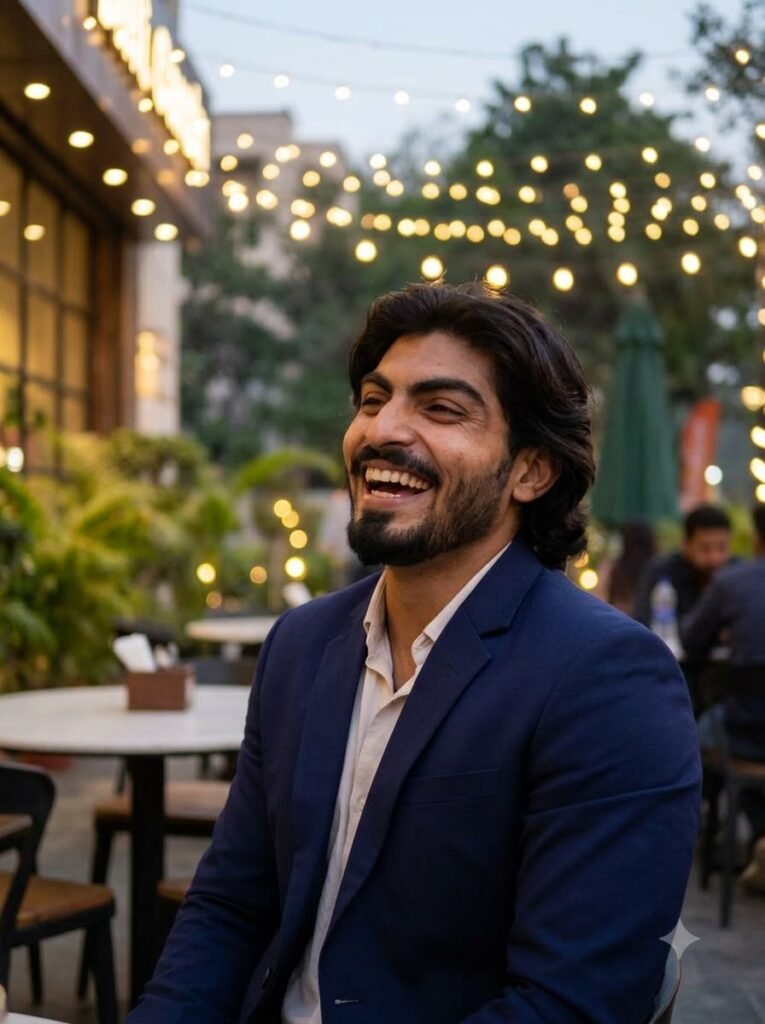
1. Navy Blazer Café Portrait
Prompt
Photorealistic shot of a man in a navy blazer, laughing candidly, in an outdoor café at dusk with string lights, close-up portrait, shallow depth of field, 50mm lens feel. Keep the facial features and skin tone from the uploaded photo unchanged. Aspect ratio 4:5.
A generator example for “Navy Blazer Café Portrait,” demonstrating a complete prompt-generator output with specific visual details.
Best for: testing the generator and comparing how field choices change the result.
Aspect ratio: 4:5.
Customisation tip: Change one generator field at a time and compare the result before changing another.
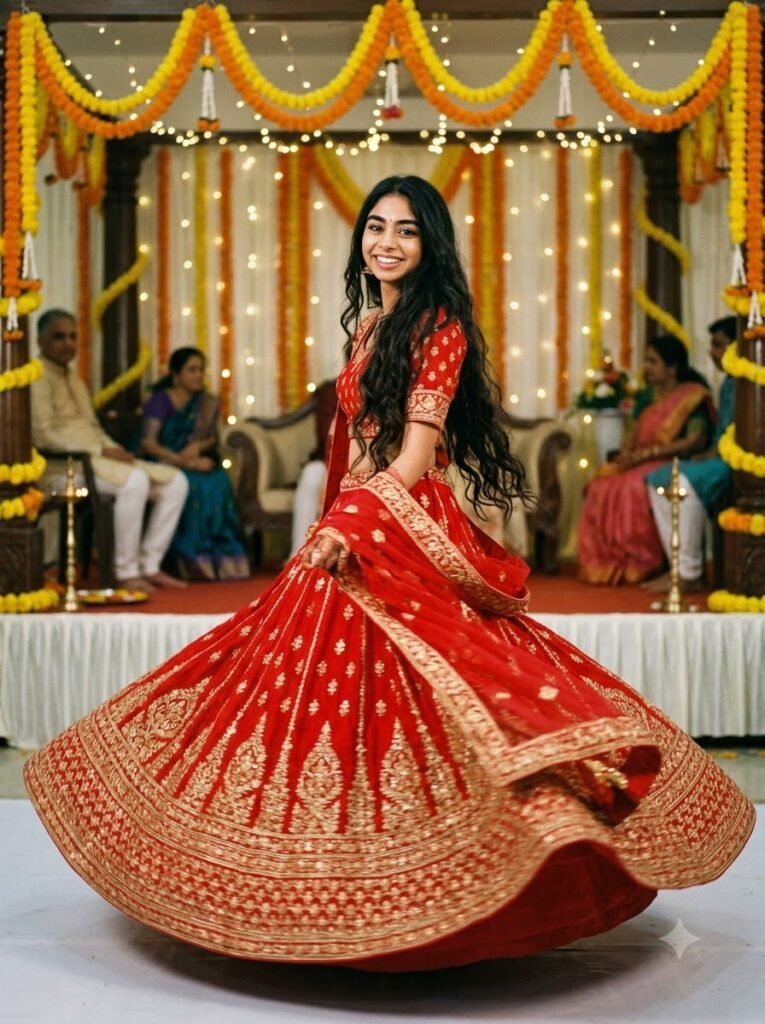
2. Red Lehenga Spin with Film Grain
Prompt
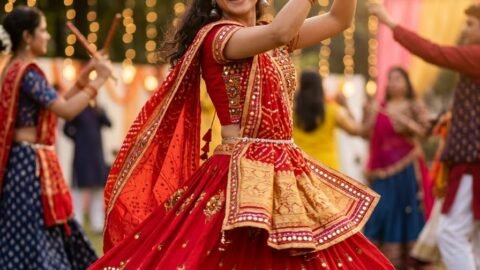
Photorealistic, film grain shot of a woman in a red lehenga, mid-spin with the skirt flared outward, in a decorated stage with marigold garlands, full-body shot, shallow depth of field, 85mm lens feel. If a reference photo is uploaded, preserve the person's exact identity, real age, skin tone, hairstyle and natural proportions. No altered facial features, extra limbs or plastic skin. Aspect ratio 4:5.
A generator example for “Red Lehenga Spin with Film Grain,” demonstrating a complete prompt-generator output with specific visual details.
Best for: testing the generator and comparing how field choices change the result.
Aspect ratio: 4:5.
Customisation tip: Change one generator field at a time and compare the result before changing another.
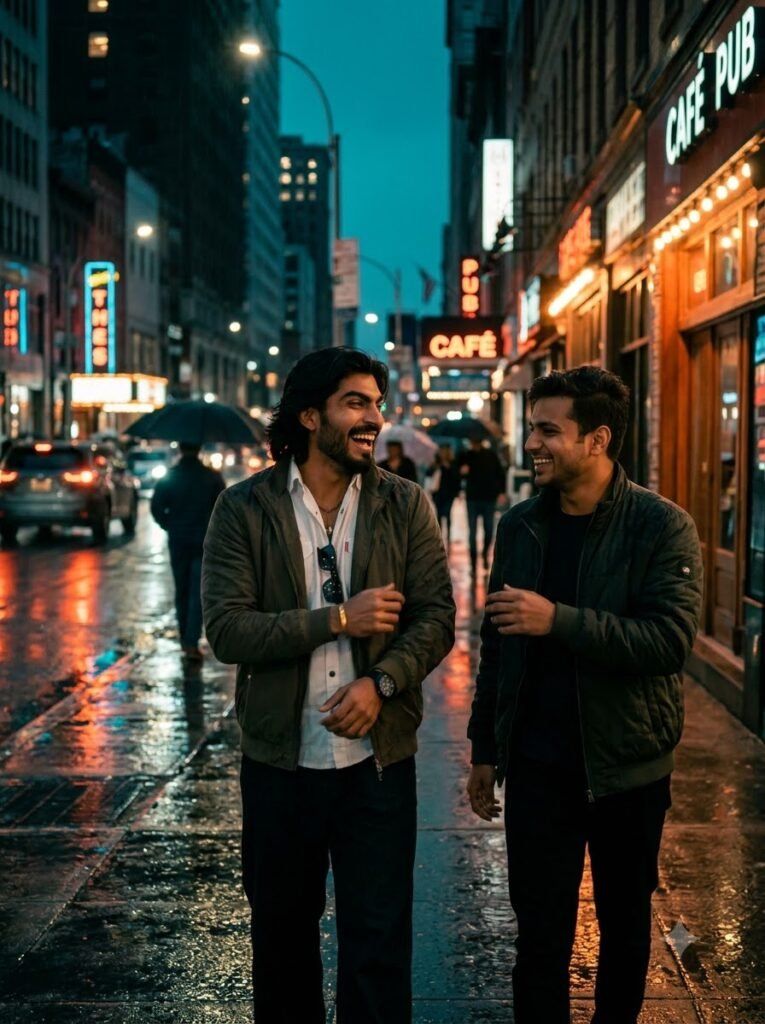
3. Friends Walking on a Rainy Neon Street
Prompt
Photorealistic, cinematic color grading shot of two friends walking, laughing mid-conversation, in a rain-slicked city street at night, wide shot, deep focus, 35mm lens feel. Aspect ratio 3:2.
A generator example for “Friends Walking on a Rainy Neon Street,” demonstrating a complete prompt-generator output with specific visual details.
Best for: testing the generator and comparing how field choices change the result.
Aspect ratio: 3:2.
Customisation tip: Change one generator field at a time and compare the result before changing another.
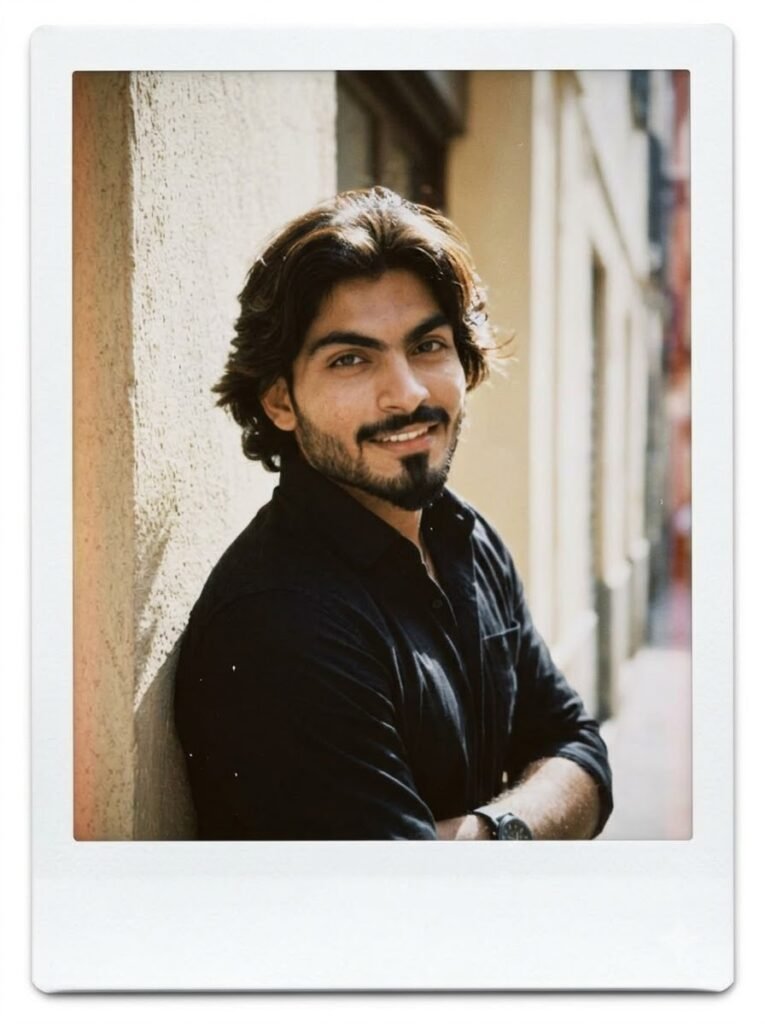
4. Polaroid Street-Corner Portrait
Prompt
Polaroid-style shot of a person leaning against a wall, casual half-smile, on a sunlit street corner, close-up portrait, shallow depth of field, 50mm lens feel. If a reference photo is uploaded, preserve the person's exact identity, real age, skin tone, hairstyle and natural proportions. No altered facial features, extra limbs or plastic skin. Aspect ratio 4:5.
A generator example for “Polaroid Street-Corner Portrait,” demonstrating a complete prompt-generator output with specific visual details.
Best for: testing the generator and comparing how field choices change the result.
Aspect ratio: 4:5.
Customisation tip: Change one generator field at a time and compare the result before changing another.
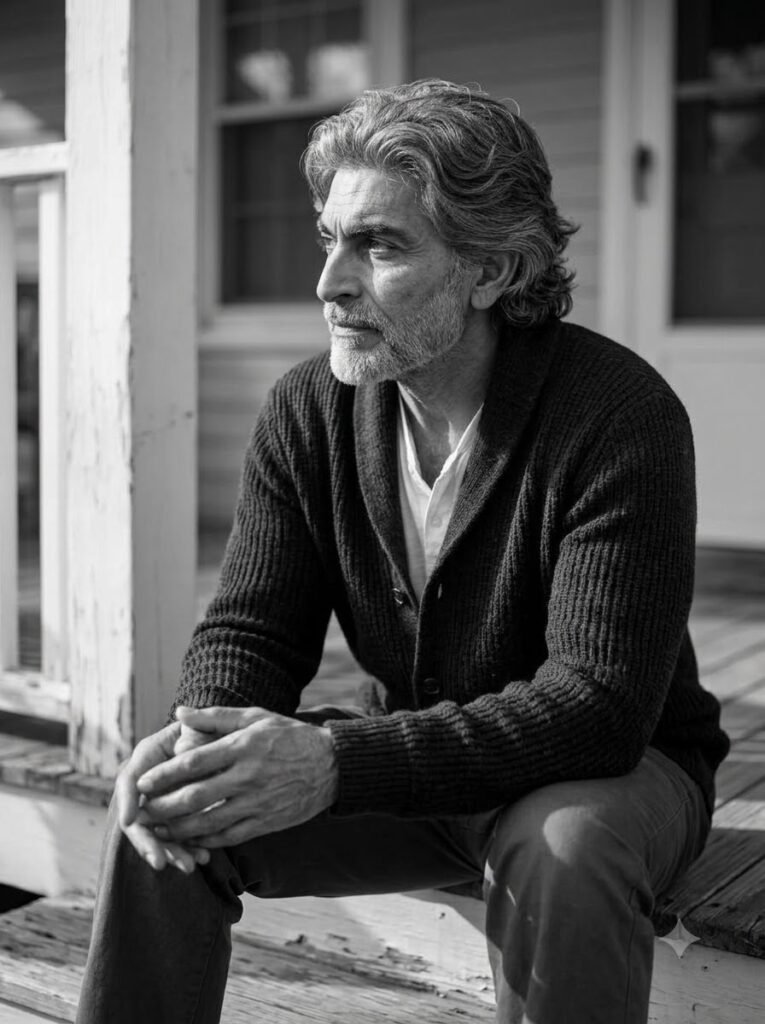
5. Black-and-White Elderly Man Portrait
Prompt
Black-and-white photorealistic shot of an elderly man, seated in quiet thought, on a porch step in soft afternoon light, close-up portrait, shallow depth of field, 50mm lens feel. If a reference photo is uploaded, preserve the person's exact identity, real age, skin tone, hairstyle and natural proportions. No altered facial features, extra limbs or plastic skin. Aspect ratio 4:5.
A generator example for “Black-and-White Elderly Man Portrait,” demonstrating a complete prompt-generator output with specific visual details.
Best for: testing the generator and comparing how field choices change the result.
Aspect ratio: 4:5.
Customisation tip: Change one generator field at a time and compare the result before changing another.
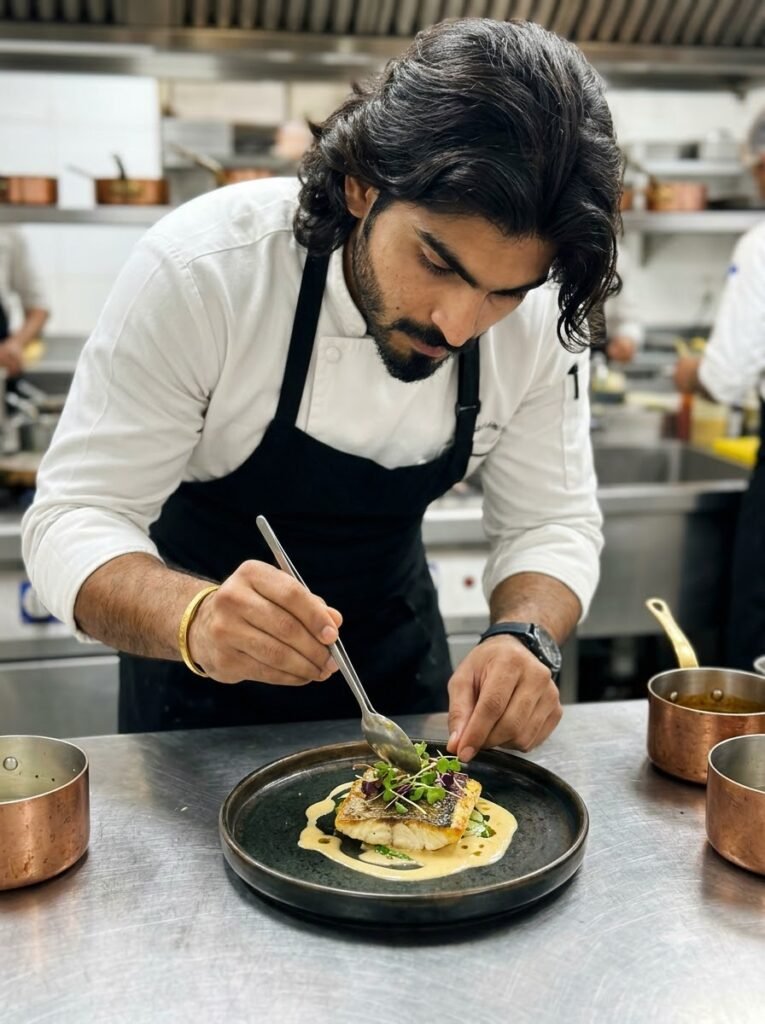
6. Chef Plating a Dish
Prompt
Photorealistic shot of a chef in a white uniform, plating a dish, in a professional kitchen with stainless steel surfaces, overhead shot, sharp focus. If a reference photo is uploaded, preserve the person's exact identity, real age, skin tone, hairstyle and natural proportions. No altered facial features, extra limbs or plastic skin. Aspect ratio 3:2.
A generator example for “Chef Plating a Dish,” demonstrating a complete prompt-generator output with specific visual details.
Best for: testing the generator and comparing how field choices change the result.
Aspect ratio: 3:2.
Customisation tip: Change one generator field at a time and compare the result before changing another.
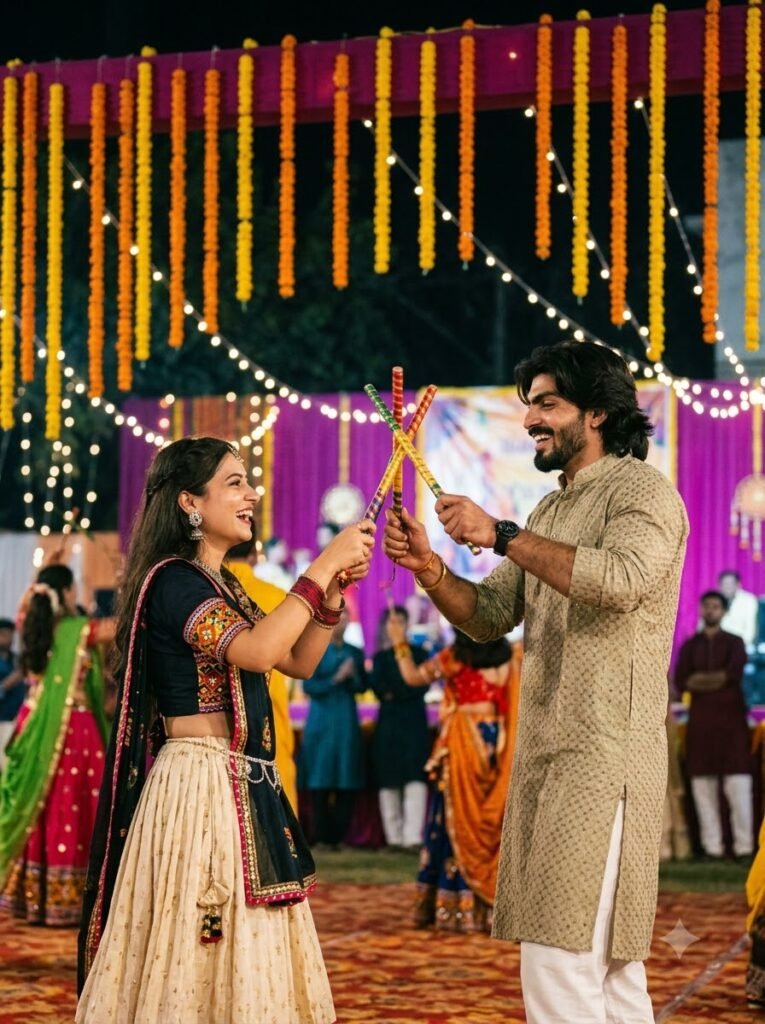
7. Dandiya Couple with Film Grain
Prompt
Photorealistic, film grain shot of a couple, dandiya sticks crossed mid-strike, at an outdoor stage decorated with string lights, full-body shot, shallow depth of field, 85mm lens feel. Keep the facial features and skin tone from the uploaded photo unchanged. Aspect ratio 4:5.
A generator example for “Dandiya Couple with Film Grain,” demonstrating a complete prompt-generator output with specific visual details.
Best for: testing the generator and comparing how field choices change the result.
Aspect ratio: 4:5.
Customisation tip: Change one generator field at a time and compare the result before changing another.
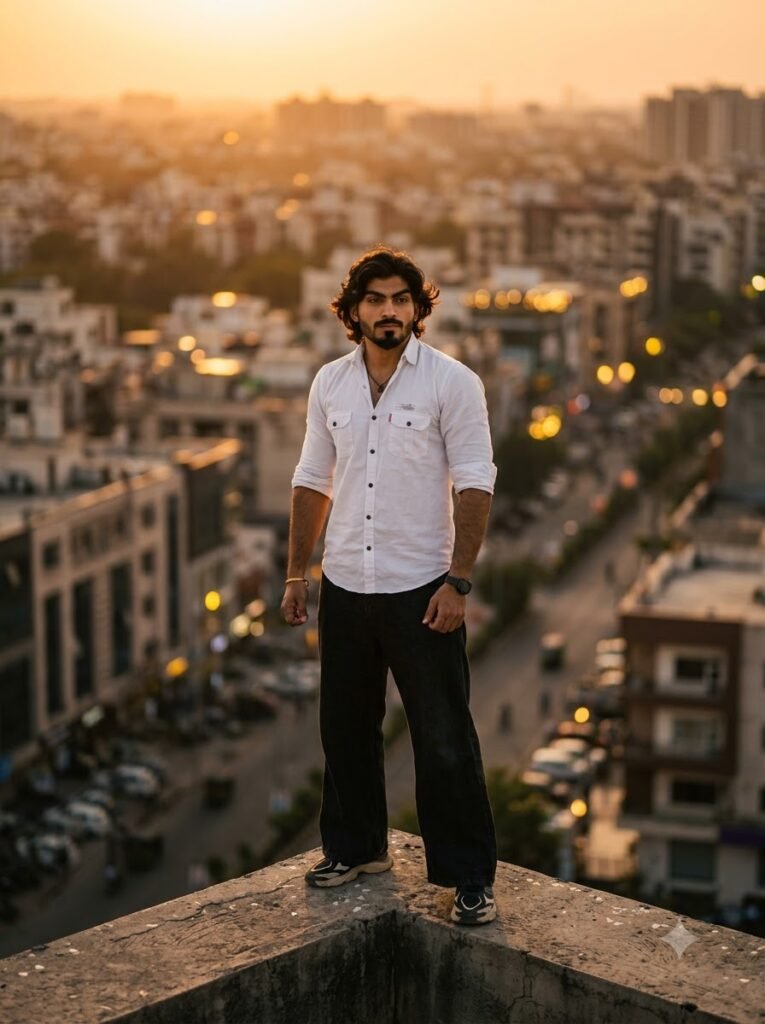
8. Cinematic Rooftop Sunset Portrait
Prompt
Photorealistic, cinematic color grading shot of a woman, standing at the edge of a rooftop at sunset, city skyline blurred behind her, wide shot, deep focus, 35mm lens feel. If a reference photo is uploaded, preserve the person's exact identity, real age, skin tone, hairstyle and natural proportions. No altered facial features, extra limbs or plastic skin. Aspect ratio 3:2.
A generator example for “Cinematic Rooftop Sunset Portrait,” demonstrating a complete prompt-generator output with specific visual details.
Best for: testing the generator and comparing how field choices change the result.
Aspect ratio: 3:2.
Customisation tip: Change one generator field at a time and compare the result before changing another.
Advanced controls
Once you’re comfortable with the basic fields, these additions push results further:
Negative constraints. Add a sentence like “no text overlay, no sunglasses” directly after the generated prompt if there’s something specific you want excluded.
Multi-image combination. The generator builds single-scene prompts. To combine two uploaded photos (a person and a location, for example), write “Using these two photos, place [subject] into [setting]” manually — see the prompt-writing guide for the full pattern.
Editing vs. generating. This tool builds generation prompts (new scenes). If you’re editing a specific uploaded photo instead, start with “Edit this photo:” and describe only what should change — see the guide for the distinction.
Troubleshooting
Generator output feels generic. Add more specific detail to the Subject and Setting fields — those two do the most work in pulling a result away from Gemini’s defaults.
Copy button doesn’t work. Select the text in the box manually and copy it — some mobile browsers block the one-click copy shortcut.
Result doesn’t match the uploaded photo’s face. Confirm the “preserve facial features” option was on before copying the prompt, and upload a clear, well-lit reference photo in Gemini itself.
FAQ
Is this generator connected to Gemini directly — does it generate the image for me?
No. It builds the prompt text. Copy the result and paste it into Gemini’s image tool yourself, along with a reference photo if you’re using the face-preservation option.
Can I save prompts I’ve built for later?
Not from this tool directly — copy and save them wherever you keep notes. A save feature may be added later depending on demand.
What’s the difference between this and the full prompt-writing guide?
This page is for quickly assembling a prompt without thinking through the framework yourself. The guide explains why each field matters and covers editing prompts, multi-image prompts, and troubleshooting in more depth.
Does this only work for portraits, or can I use it for objects and scenes too?
It works for any subject — describe an object, a food shot, or a landscape in the Subject field the same way you would a person, and skip the facial-preservation option.
This tool and guide are original and built for GeminiGuru.
My name is Ankush Sheoran. I am a Master of Science in AI & Data Science student and a passionate Web Developer with over 3 years of hands on experience. Here, I combine my academic background in Data Science with my practical experience in prompt engineering to provide you with Tested AI Prompts, Developer Resource, Actionable Guides.